First Steps Inside Build and Kill Zombies
Jumping into Build and Kill Zombies for the first time feels overwhelming because three systems (car building, weapon rolling, and zombie waves) all activate the moment you load the map, so most new players stall at the lobby. This how-to-start walkthrough trims that learning curve by covering the actual launch flow, the on-screen layouts for mobile and console, the friend-join path, and the steps to spin up a private server for a controlled test run.
Build and Kill Zombies is a Roblox experience published by the Zombie Car Crusher community, which as of September 2026 sits at roughly 96,546 members. The free-reward path matters on day one: liking the experience and joining the Zombie Car Crusher Roblox community unlocks a free lobby chest, and the same group page is the de facto announcement hub because the developer has not launched a standalone Discord or YouTube channel. Treat the community page like a patch-notes feed, then come back here for the control and multiplayer walkthrough below.
Mobile Controls Reference
Default Touch Layout
Mobile players control their character with a virtual joystick on the lower-left and a jump button anchored to the lower-right, which mirrors the standard Roblox input template. Build actions map to on-screen radial buttons that appear once you stand near a plot, and the roll/gacha machine pulls up a swipeable card grid rather than a keyboard shortcut. Sensitivity cannot be re-bound from a settings menu, so the most reliable improvement is moving the joystick slightly off the screen edge if your thumb drifts.
What Changes When You Enter the Garage
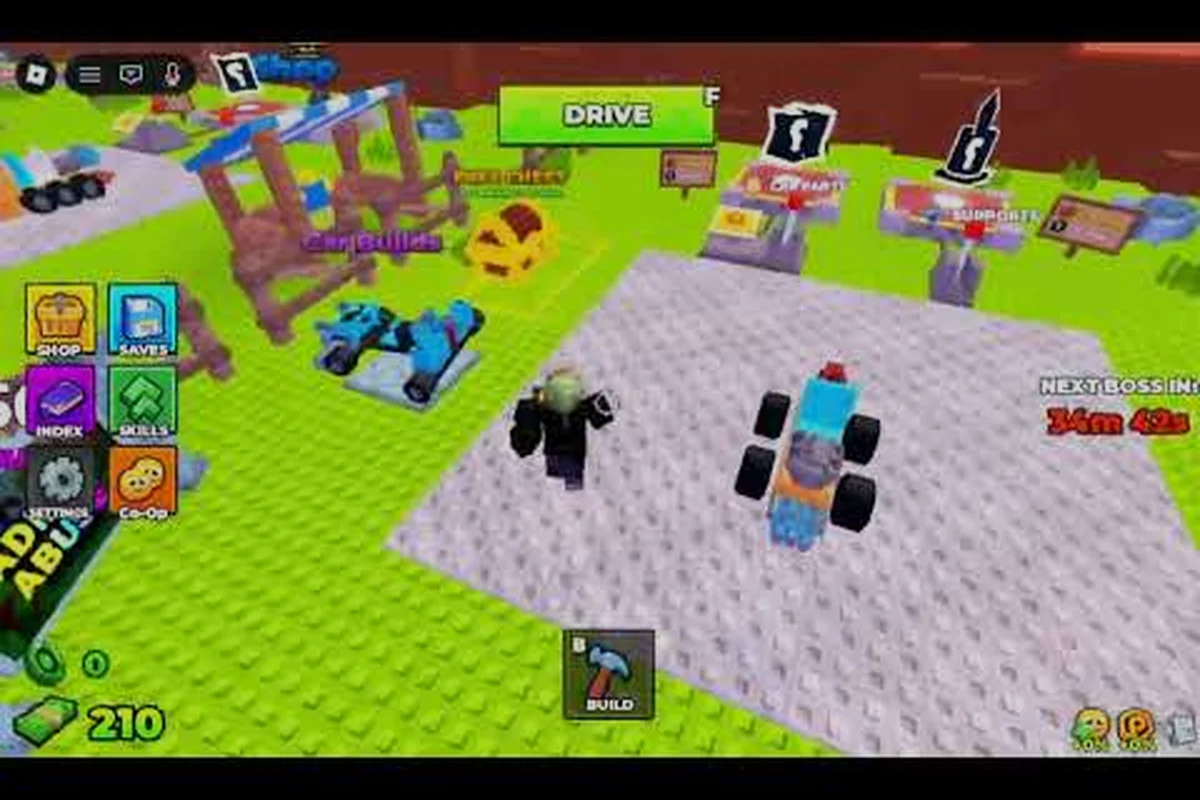
When you walk into the build zone, the joystick stays active for camera panning, but the attack button swaps to a "Place Part" trigger and a "Confirm Build" trigger appears above the radial. Drag the highlighted block onto your vehicle frame, tap to snap it, and hit Confirm Build to commit. Mobile players tend to underuse the orbit-camera pinch gesture, which is the fastest way to align suspension pieces underneath the chassis before locking the build.
| Action | Mobile Touch | Notes for Beginners |
|---|---|---|
| Move character | Left virtual joystick | Drag distance controls walk vs. run speed |
| Jump | Lower-right Jump button | Hold for higher hops near ledges |
| Build / Place Part | Radial "Place Part" trigger | Only active inside a plot zone |
| Confirm Build | Floating Confirm Build button | Tap twice to avoid misfires |
| Open Roll Machine | NPC prompt "Roll" | Swipe cards left or right to read passives |
| Camera orbit | Two-finger pinch and drag | Essential for under-car alignment |
Common Mobile Friction Points
Players on phones report that the Confirm Build button occasionally hides behind the joystick on smaller screens, so dragging the joystick toward the center of the display before tapping Confirm is a reliable workaround. The roll machine's card grid also responds to swipe momentum, which means a slow drag is safer than a fast flick when you are reading passives. If the on-screen keyboard pops up for naming a vehicle, dismiss it with the platform back gesture before tapping Confirm Build, otherwise the keyboard absorbs the tap.
Console Controls Reference
Controller Layout Overview
On Xbox and PlayStation the left stick walks and runs, the right stick orbits the camera, A or X jumps, and the right trigger swings the equipped weapon. B or Circle cancels the current build step, which is the single most useful binding to memorize because misclicks during car assembly are common. Build and Kill Zombies does not expose a full button-remap screen on console, so the default layout is the layout you ship with.
Garage and Roll Machine on a Gamepad
The garage prompts a four-way D-pad shortcut on console, with Up opening the part picker, Left and Right cycling categories, and Down toggling rotation snap. Confirming a build uses A or X, and the right bumper rotates the camera 90 degrees so you can inspect the underside of the frame without losing your place. The roll machine opens with a face-button prompt when you talk to the gacha NPC, and the left and right triggers cycle through cards while Y or Triangle locks in a pick.
| Action | Xbox / PlayStation Binding | Practical Tip |
|---|---|---|
| Move | Left stick | Tap the stick to sprint briefly |
| Camera orbit | Right stick | Click in to recenter behind the car |
| Jump | A (Xbox) / X (PS) | Double-tap for a small boost hop |
| Attack / Use | Right trigger | Hold to charge heavy swings |
| Cancel build step | B (Xbox) / Circle (PS) | Binds the most common undo |
| Confirm build | A (Xbox) / X (PS) | Same as jump — context sensitive |
| Cycle roll cards | LT / RT | Slow trigger pulls read passives clearly |
| Lock-in roll pick | Y (Xbox) / Triangle (PS) | Avoids accidental confirm |
Console-Specific Quirks
Controller players tend to overshoot the build-snap grid because the right-stick sensitivity is fixed, so using the right-bumper 90-degree snap before nudging the part is the cleanest workflow. The roll machine also has a soft cooldown animation on console that does not appear on PC, so waiting for the NPC to finish its arm gesture prevents a wasted input. If you are playing on Steam Deck, the community report is that the game registers as a controller layout rather than keyboard, so plan on using the bindings above rather than the touch screen.
Build and Kill Zombies How to Play With Friends
Adding Friends on Roblox
Build and Kill Zombies runs on the standard Roblox friend graph, so the only requirement is that both accounts are connected and on the same server region. Open the player's profile from the in-game leaderboard, hit Add Friend, and wait for the invite to clear. Friends appear in a side panel on the main menu, and a green dot means they are online and eligible to join the same instance.
Joining a Friend's Server
Build and Kill Zombies how to join friends cleanly: from the Roblox home page, click the friend's avatar, choose Join Game, and Roblox will land you in their current server if there is a free slot. If the server is full, the Join button greys out and you need to wait for a slot or coordinate a private-server swap. Public servers cap at the Roblox default of six to eight players depending on the experience's current configuration, which the developer has not published a hard cap for, so plan around the assumption that you may need a private room for groups of four or more.
| Group Size | Best Join Method | Notes |
|---|---|---|
| 2 players | Direct join from friend list | Fastest path, no setup needed |
| 3-4 players | Friend's public server or private | Private avoids slot waits |
| 5+ players | Private server required | Coordinate invite links ahead of time |
| Cross-platform | Same Roblox account on both devices | Friends list syncs across mobile and console |
Coordinating a Squad Run
Squad play in Build and Kill Zombies usually splits into a builder, a driver, and two gunners, because the vehicle can only seat as many players as there are mounted weapon hardpoints. The builder stays at the plot to swap parts between waves, while the driver holds the wave-start position so the squad does not leak damage. Voice chat is not built into the experience itself, so most squads run Discord or platform party chat on the side. If you want a refresher on the lobby-side steps before the squad joins, the lobby guide covers the plot ownership flow and the chest claim process in more detail.
Build and Kill Zombies Private Server Guide
Who Can Create One
A Roblox private server (sometimes called a VIP server) costs Robux and is tied to the experience, not the player, so any account with enough Robux can spin one up from the game's main page. Click the three-dot menu on the Build and Kill Zombies page, choose Create Private Server, name it, and confirm the recurring Robux charge. The owner can then invite friends by username or share a join link, and the server stays online even when the owner is offline as long as the subscription is active.
Configuring a Private Server
Once the server is live, the owner lands in a fresh instance with the same lobby rules as public play, but no random players can join. Most squad leaders use private servers for three reasons: testing new car builds without griefing, hosting car-vs-car races with custom rules, and running farming sessions where the team coordinates weapon rolls. Because the lobby rewards (free chest from liking and joining the group) still trigger on first login, a private server does not bypass the onboarding steps.
| Step | Action | Owner-Only? |
|---|---|---|
| 1 | Open Build and Kill Zombies Roblox page | No |
| 2 | Click three-dot menu → Create Private Server | No (pays Robux) |
| 3 | Name the server and confirm subscription | Yes |
| 4 | Invite friends by username or share link | Yes |
| 5 | Adjust allowed-player list from server settings | Yes |
| 6 | Shut down the server to stop the recurring charge | Yes |
Switching Between Public and Private
You can leave a private server at any time without canceling the subscription, which is useful when the squad is done farming and you want to jump into a populated public instance for boss runs. The reverse path (public → private) is also free of friction: open the in-game menu, choose Leave, and then rejoin through the private-server invite link. Subscriptions renew monthly, so set a calendar reminder if you only need the private room for a weekend event.
Onboarding Checklist for New Players
The First Five Minutes
The fastest valid first session follows a tight sequence: load the experience, claim the free lobby chest by liking the page and joining the Zombie Car Crusher group, then enter the nearest plot and roll a starter weapon before touching the car build menu. This ordering matters because weapon passives stack across waves while car parts are resettable, so a lucky early roll carries more value than a perfect chassis you will scrap in twenty minutes. The beginner guide walks through that early progression if you want a deeper dive after this walkthrough.
Pre-Run Checklist Table
| Step | Why It Matters | Skip Cost |
|---|---|---|
| Like the experience | Unlocks the free chest | Lose one early-game roll |
| Join Zombie Car Crusher group | Second chest trigger | Lose the second roll |
| Roll a starter weapon first | Passives persist across waves | Start wave 1 undergeared |
| Build a placeholder car | Survives wave 1 reliably | Eat hits on foot |
| Invite one friend | Easier repair economy | Repair costs scale solo |
| Save private-server invite | Late-night farming sessions | Lose Robux on reroll |
Resetting Progress When You Need a Clean Slate
If you have been testing builds and want to start over without losing the Robux you have already spent on game passes, the developer exposes a reset path through the in-game settings menu. The reset is non-destructive on the account level, so your Robux balance, group membership, and like on the experience stay intact. The full step-by-step lives in the reset progress guide, which also covers the refund rules for the in-game roll machine.
Troubleshooting the First Session
Server and Connection Issues
Build and Kill Zombies runs on Roblox's standard server infrastructure, so the most common first-session complaint is being dropped into a region far from the player. The fix is to leave the server, open Settings → Privacy, and confirm the Allowed Experiences setting is not filtering you into a low-population shard. If a friend's server refuses your join request, the cause is usually a full slot list or a private-server invite that expired, so coordinate the join window rather than spamming the button.
Input Lag on Mobile
Mobile input lag typically traces back to background apps eating RAM, because Build and Kill Zombies streams the build grid in real time. Closing background apps, lowering screen brightness, and switching from Wi-Fi to a strong cellular signal will usually resolve it. If the lag persists, the on-screen Confirm Build button can be unresponsive when the joystick is overlapping it, so the workaround is to release the joystick fully before tapping.
Mismatched Friend Lists
Cross-platform squads sometimes find that one player's friend list is empty even though the other can see them, which is a Roblox-side account setting rather than a Build and Kill Zombies bug. Confirm that both accounts have the "Allow friend requests" toggle on, and that neither player is using a child account with restricted social features. Once both accounts are linked, the friend graph re-syncs within a few minutes.
Frequently Asked Questions
How do I start Build and Kill Zombies for the first time?
Load the experience from the Roblox page, like it, and join the Zombie Car Crusher group to unlock the free lobby chest. Then enter the nearest plot, roll a starter weapon, and build a placeholder car before wave 1 starts. The whole first run takes about ten minutes if you skip the cosmetic menus.
What are the best Build and Kill Zombies mobile controls for combat?
Keep the virtual joystick centered, use the lower-right jump button for elevation, and rely on the right-side attack button rather than the on-screen weapon wheel to swap gear. Pinch-zoom the camera before committing any build action so you can see the part you are placing, and tap the Confirm Build button twice to avoid misfires on small screens.
What are the Build and Kill Zombies console controls for the garage?
On Xbox and PlayStation, the D-pad cycles part categories, the right bumper snaps the camera 90 degrees, and A or X confirms the build while B or Circle cancels the current step. The right trigger swings the equipped weapon, and the triggers also cycle cards in the roll machine, so you do not need to remap anything from the default layout.
How do I play Build and Kill Zombies with friends on different platforms?
Add the friend through Roblox's standard friend system, then join their public server from the friend list. For cross-platform squads, both players should be on the same Roblox account on their respective devices because the friend graph syncs across the Roblox ecosystem, and use a private server if your group has more than four players.
Can I run a Build and Kill Zombies private server for free?
No, Roblox charges a recurring Robux fee for private (VIP) servers, and the subscription is tied to the experience rather than the player. The server stays online even when the owner is offline, which makes it ideal for farming sessions and car testing, and the owner can shut it down at any time to stop the recurring charge.